# Salesforce

### Create a Salesforce application

To integrate Appmixer with Salesforce, you are going to need an app in your Salesforce account. You can either create a new one or use one that already exists.

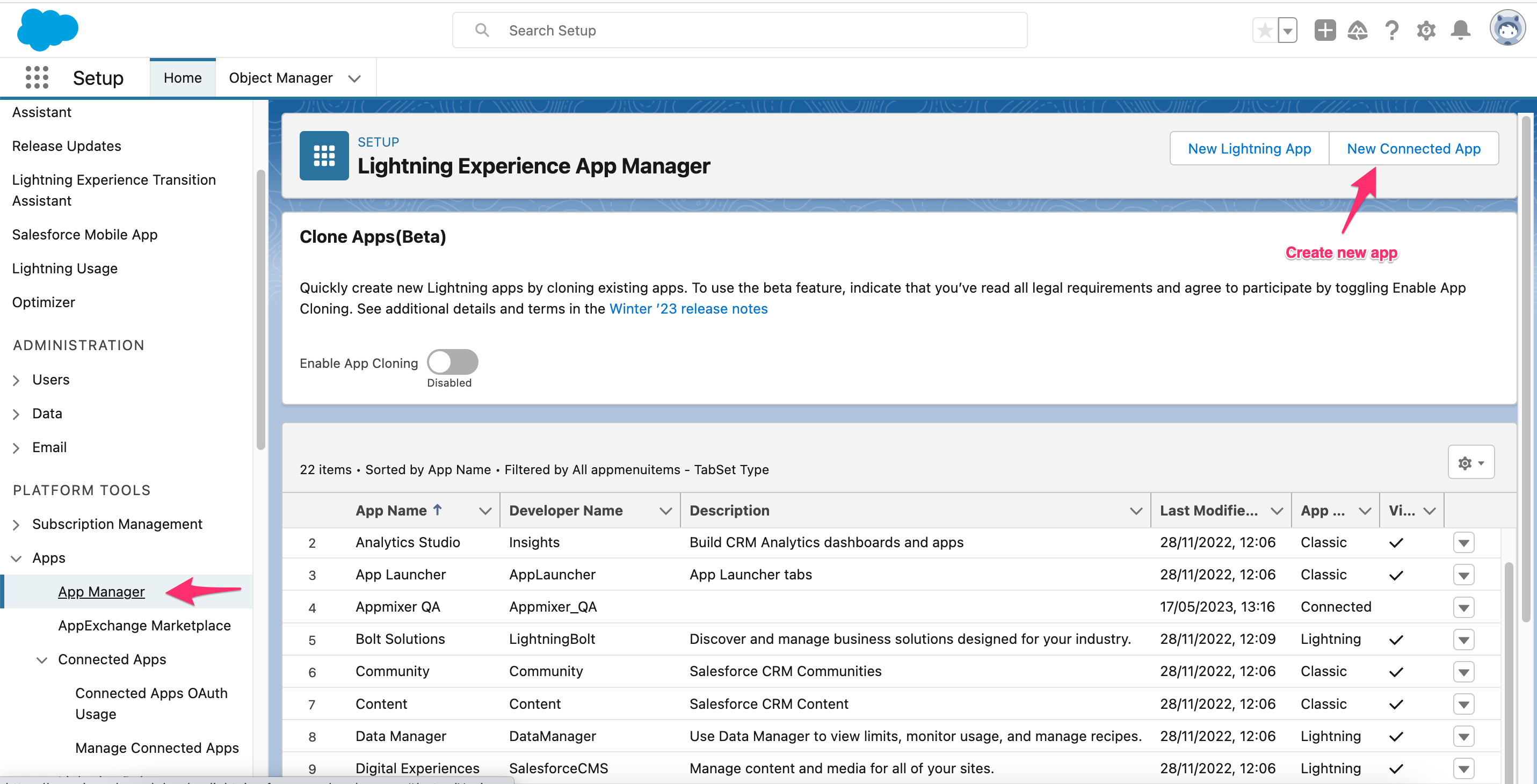
To create an app, you have to login into [Salesforce Developer portal](https://developer.salesforce.com). Once logged in, on the left menu, look up **Platform Tools -> Apps -> App Manager**. This will show you a list of your existing apps and provide the option to create a new one via the *New Connected App* on the top right side:

<figure><img src="https://3844357853-files.gitbook.io/~/files/v0/b/gitbook-x-prod.appspot.com/o/spaces%2FLWWF0gTSzvFs1o4Cs6Tm%2Fuploads%2FdYdR3bkgJ0xNCMFKOtxT%2FApp_Manager___Salesforce.png?alt=media&#x26;token=4bc2b752-efb2-4d51-9044-d80889e5a73e" alt=""><figcaption><p>App manager</p></figcaption></figure>

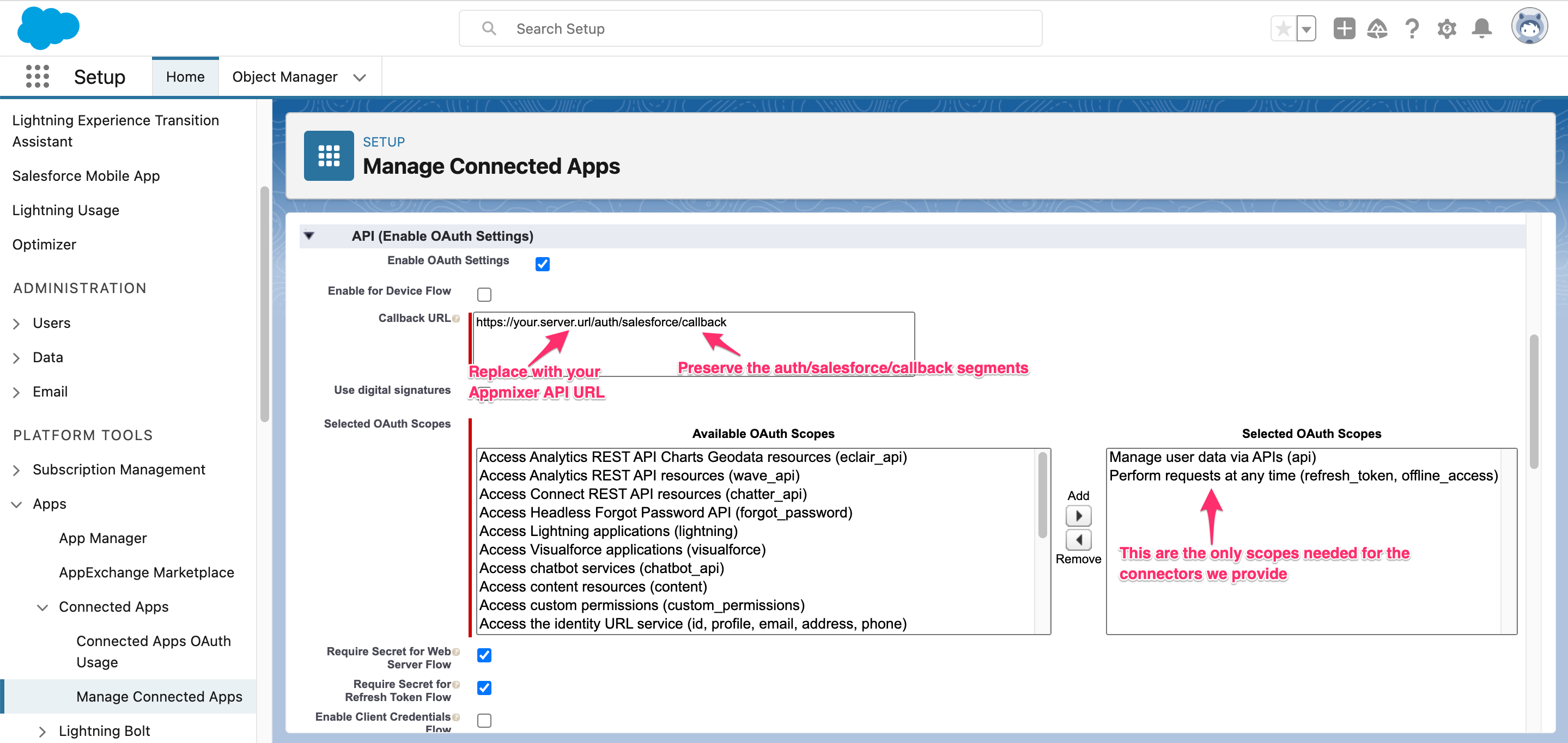
In the next screen, you will be requested to fill out some basic data about your new app. Look out for the **API (Enable OAuth Settings)** section. Tick the Enable OAuth Settings checkbox, and fill out the callback URL and scopes as shown in this screenshot:

<figure><img src="https://3844357853-files.gitbook.io/~/files/v0/b/gitbook-x-prod.appspot.com/o/spaces%2FLWWF0gTSzvFs1o4Cs6Tm%2Fuploads%2FahkADYOgCI4HcI50b05U%2FManage_Connected_Apps___Salesforce.png?alt=media&#x26;token=cef89632-1d13-4730-ac88-2fc2dc7d03c4" alt=""><figcaption><p>Filling OAuth settings for your application</p></figcaption></figure>

### Getting client id and secret

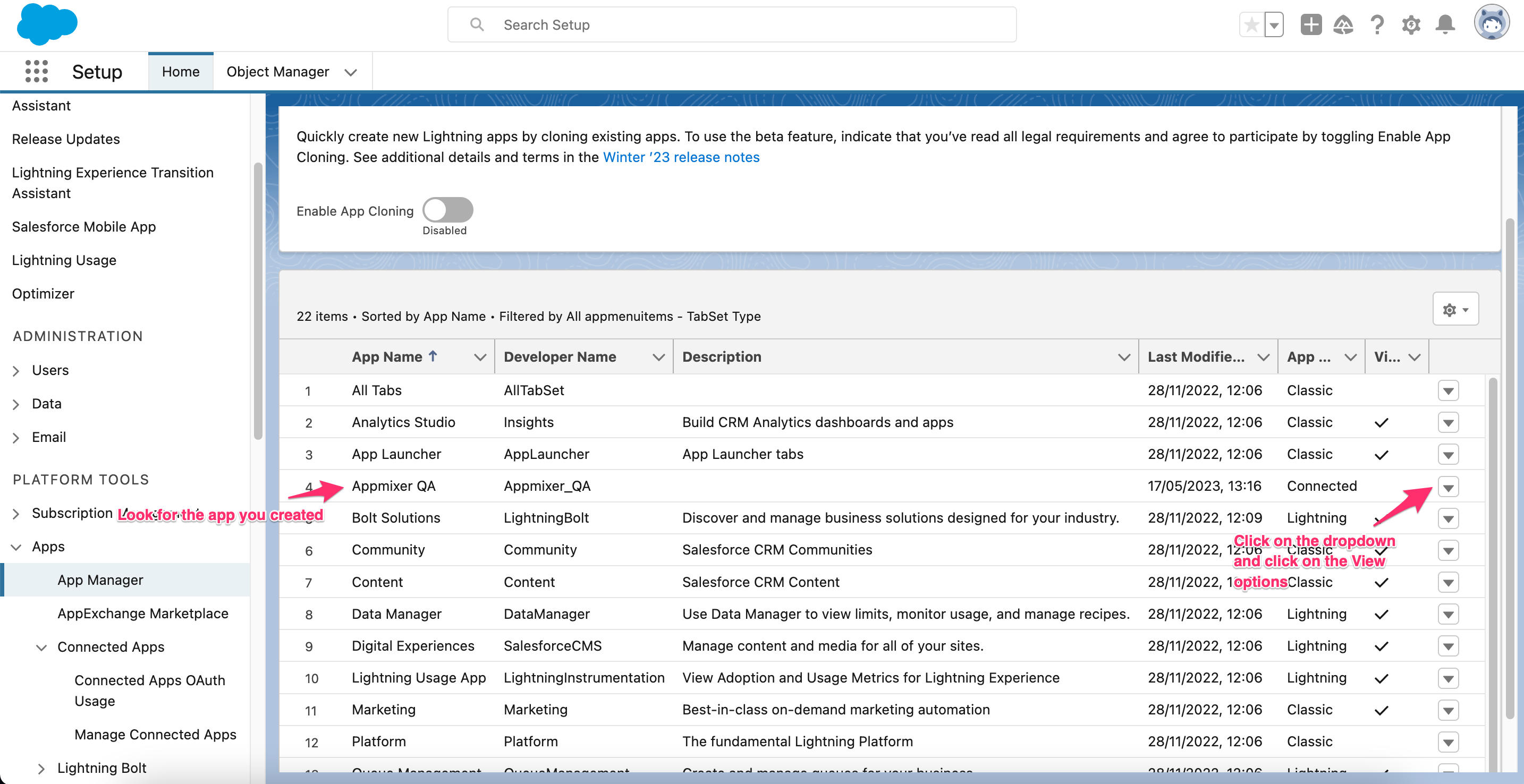
With your app ready, you can get the client id and secret required for integrate Salesforce into Appmixer. Go to the **App Manager** and search for your app in the list. On the dropdown in the right side, click the **View** option.

<figure><img src="https://3844357853-files.gitbook.io/~/files/v0/b/gitbook-x-prod.appspot.com/o/spaces%2FLWWF0gTSzvFs1o4Cs6Tm%2Fuploads%2FJI5RJM4LOmNUOza0yEXg%2FApp_Manager___Salesforce.png?alt=media&#x26;token=7361d97f-0a5d-49a9-a081-57e6a97d1e0a" alt=""><figcaption><p>Navigating to your app details</p></figcaption></figure>

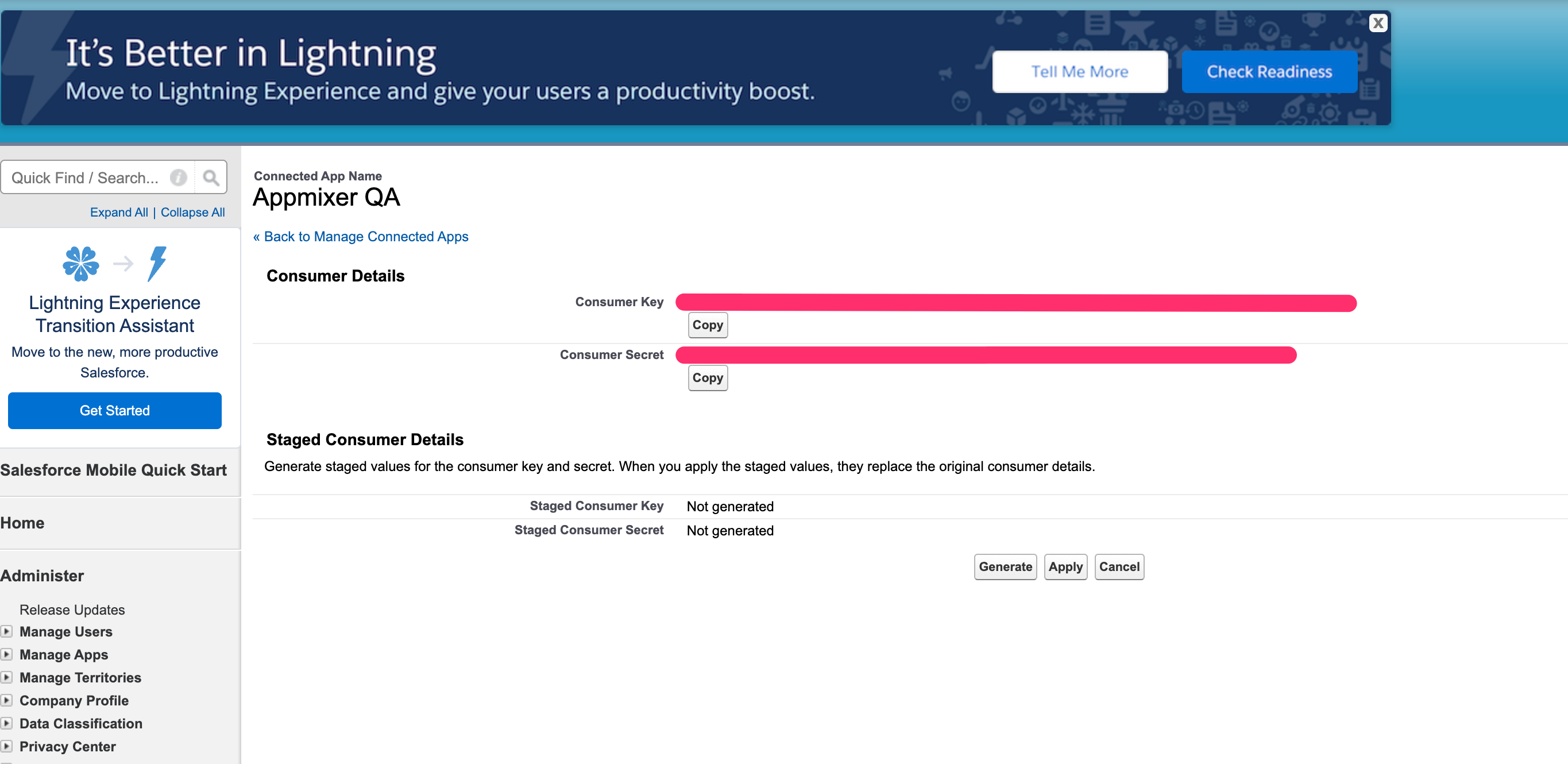
In the next screen, look out for **API (Enable OAuth Settings)** section and click on the **Manage Consumer Details** button. You should see now your client id (shown as Consumer Key) and secret (shown as Consumer Secret):

<figure><img src="https://3844357853-files.gitbook.io/~/files/v0/b/gitbook-x-prod.appspot.com/o/spaces%2FLWWF0gTSzvFs1o4Cs6Tm%2Fuploads%2FUPzVnActx5Z2sfqi0VCF%2FConnected_App__Appmixer_QA___Salesforce_-_Developer_Edition.png?alt=media&#x26;token=8b861bdf-c839-4647-9c30-9a5e2567482d" alt=""><figcaption><p>Salesforce client id (Consumer Key) and secret (Consumer Secret)</p></figcaption></figure>

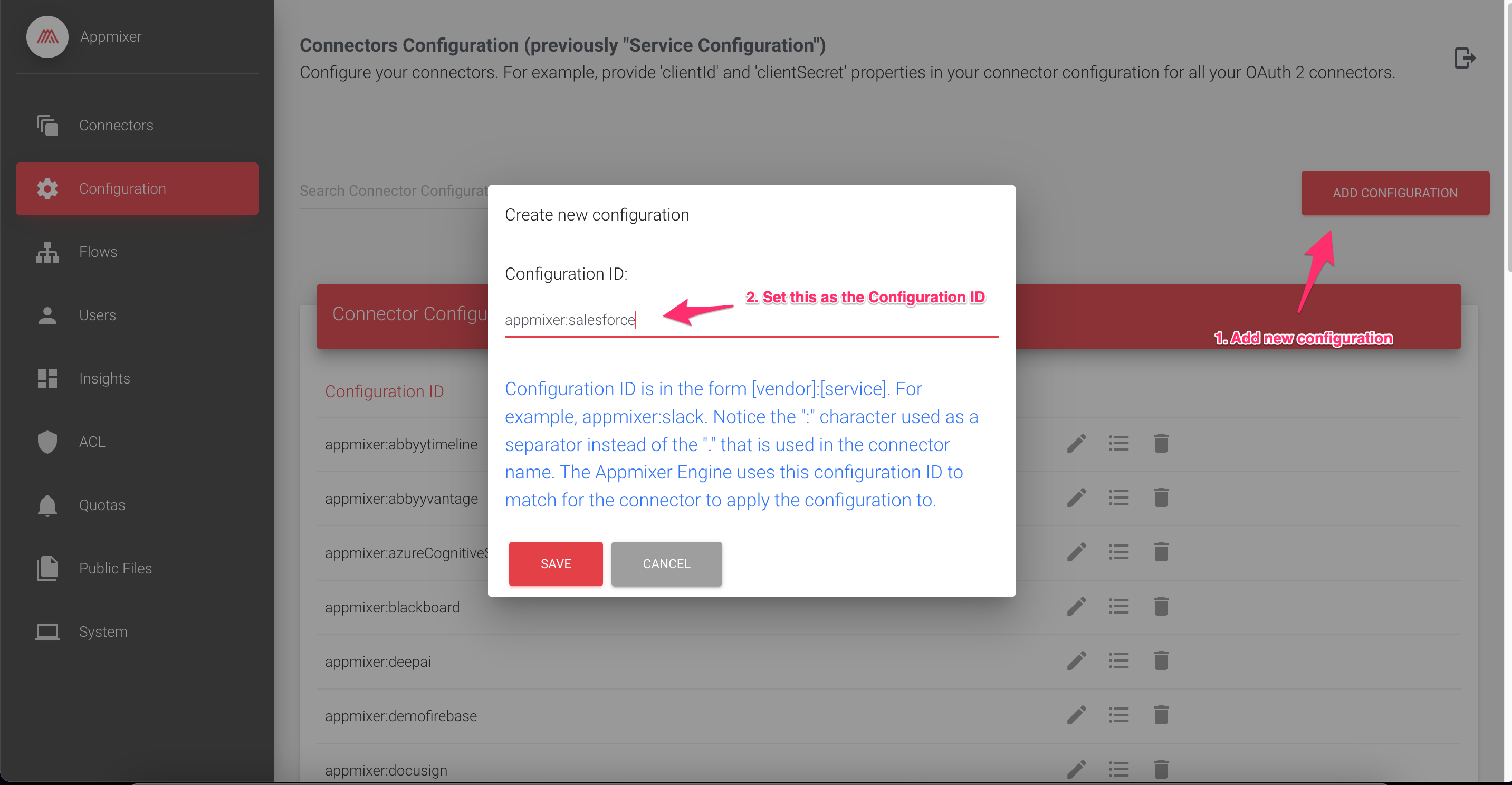
Now we can provide these values to Appmixer. Log into the Backoffice and go to the Configuration section. Create a configuration service for Salesforce as follows:

<figure><img src="https://3844357853-files.gitbook.io/~/files/v0/b/gitbook-x-prod.appspot.com/o/spaces%2FLWWF0gTSzvFs1o4Cs6Tm%2Fuploads%2FDiRkmHRKJ7OjWu9r52dE%2FAppmixer_Backoffice_-_Connectors_Configuration_y_Inbox__14_972__-_camilo_client_io_-_client_IO_Mail.png?alt=media&#x26;token=830dad18-aad1-4961-8e03-a016254b8ac0" alt=""><figcaption><p>Creating configuration for Salesforce in the Backoffice</p></figcaption></figure>

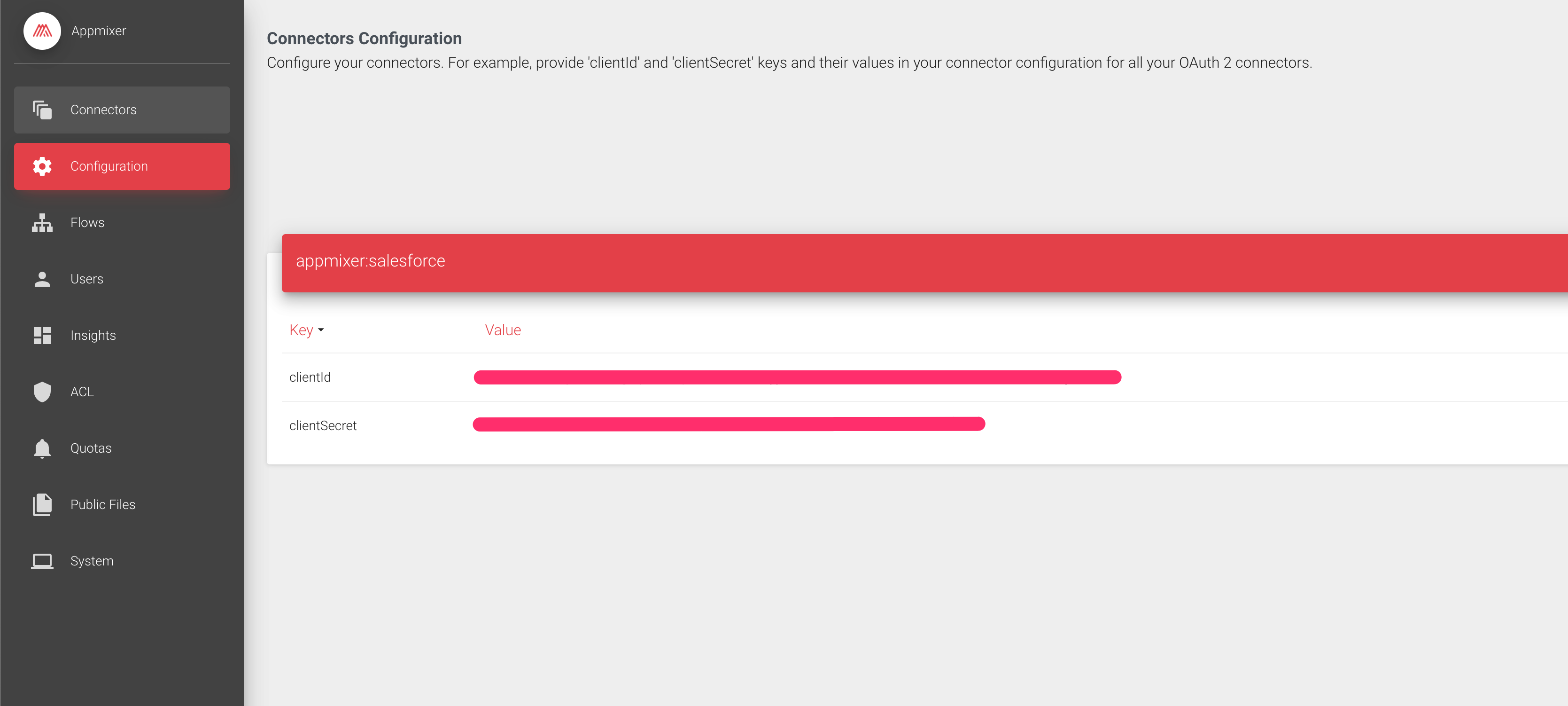
Finally, set the *clientId* (Consumer Key in Salesforce) and the *clientSecret* (Consumer Secret in Salesforce) like this:

<figure><img src="https://3844357853-files.gitbook.io/~/files/v0/b/gitbook-x-prod.appspot.com/o/spaces%2FLWWF0gTSzvFs1o4Cs6Tm%2Fuploads%2F5i9VnBsSHIRfCvTnXEy3%2FAppmixer_Backoffice_-_Connectors_Configuration.png?alt=media&#x26;token=ac985a87-8fca-45de-9cf5-12c3f639afe4" alt=""><figcaption><p>Adding clientId and clientSecret to Appmixer</p></figcaption></figure>

### Authentication configuration

The Salesforce OAuth authentication offers several behaviors when users try to authenticate. This is the summary of the available options (taken from Salesforce [Oauth docs](https://help.salesforce.com/s/articleView?id=sf.remoteaccess_oauth_web_server_flow.htm\&type=5)):

* `login`—The authorization server must prompt the user for reauthentication, forcing the user to log in again.
* `consent`—The authorization server must prompt the user for reapproval before returning information to the client.
* `select_account`—If present, take one of the following actions.
  * If zero or one hint is available and the user is logged in, show the approval page without prompting for login.
  * If zero or one hint is available and the user isn’t logged in, prompt for login.
  * If more than one hint is available, show the account chooser.

By default, we use the `login` option, but you can configure it through the Backoffice.

1. Login into the Backoffice, and go to the Services module. Then add a new service like this:

![](https://3844357853-files.gitbook.io/~/files/v0/b/gitbook-legacy-files/o/assets%2F-LATDgYqVMe0hChW7efU%2F-MgrnEMfqdLyqs7_sTwz%2F-MgsBUx-y__hz2qbRuyt%2Fsalesforce1.png?alt=media\&token=0af79dd8-ee88-46a7-b11b-43ce2fb82c40)

2\. Add a *promptType* key, and set it to one of the supported values by Salesforce:

![](https://3844357853-files.gitbook.io/~/files/v0/b/gitbook-legacy-files/o/assets%2F-LATDgYqVMe0hChW7efU%2F-MgrnEMfqdLyqs7_sTwz%2F-MgsBq0WEJ5HKmEdtKjr%2Fsalesforce2.png?alt=media\&token=a82967ef-00ea-4790-b37c-98bbaa961686)

#### Login URL

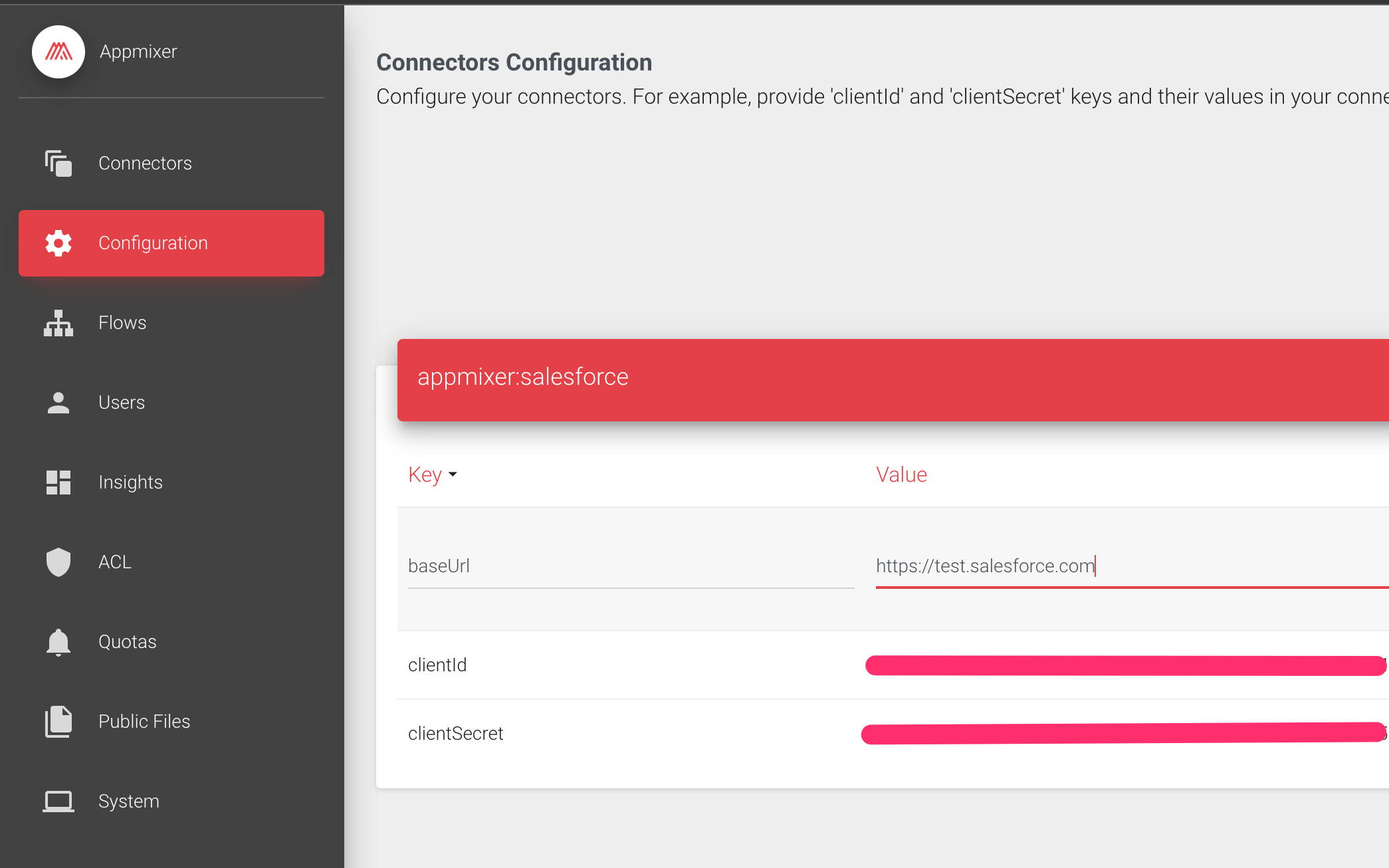
The default login URL is <https://login.salesforce.com>, this can be changed with a *baseUrl.*

<figure><img src="https://3844357853-files.gitbook.io/~/files/v0/b/gitbook-x-prod.appspot.com/o/spaces%2FLWWF0gTSzvFs1o4Cs6Tm%2Fuploads%2F5OOv9My9OVt4xyG73PGl%2FAppmixer_Backoffice_-_Connectors_Configuration.png?alt=media&#x26;token=6fd6d7e4-44de-4b5c-8938-55eaef9c90a7" alt=""><figcaption></figcaption></figure>