> For the complete documentation index, see [llms.txt](https://docs.appmixer.com/llms.txt). Markdown versions of documentation pages are available by appending `.md` to page URLs; this page is available as [Markdown](https://docs.appmixer.com/getting-started/customize-and-share-your-hub.md).
# Customize and Share Your Hub
All published templates are available in the Automation Hub - an all-in-one embeddable widget that you can use to present automations to your end users.
The Automation Hub provides these features to your users out of the box:
* Starting and managing automations including logs and accounts
* Searching and filtering
* Customization of pre-built automations (you can choose to enable or disable this option)
{% hint style="info" %}
Use the `Preview` button on the Dashboard, in the Templates section or in the Hub Settings to check how the Automation Hub looks.
{% endhint %}
## Design and Feature Customizations
Use the options in the Automation Hub Settings section to adjust the page structure and design.
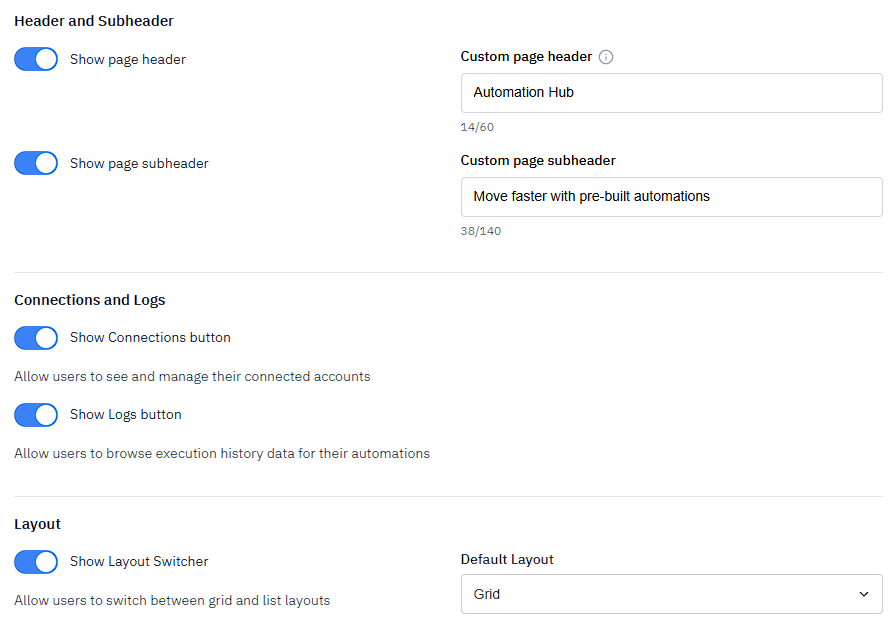
### Text and toggles in the Hub
Use the options on the page to adjust:
* Header and subheader (show/hide and text)
* Default layout (grid or list)
* Show/hide Logs and Connections tabs
### Organizing Automations into Categories
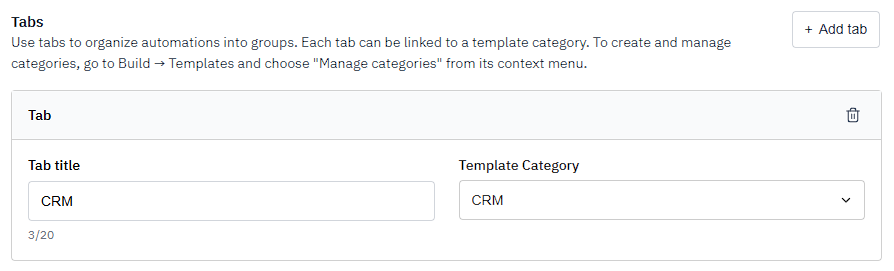
Automations can be organized into tabs for easier access to specific types of automations such as CRM, Notifications, AI or other.
To organize and assign categories:
1. Assign a category to a template in the Templates section: Select the Manage categories option in the context menu of a template in the Templates section. Select an existing category or add a new one.
2. Define tab name and select a category in the Tabs section: Enter the name and select one of the available categories in the dropdown
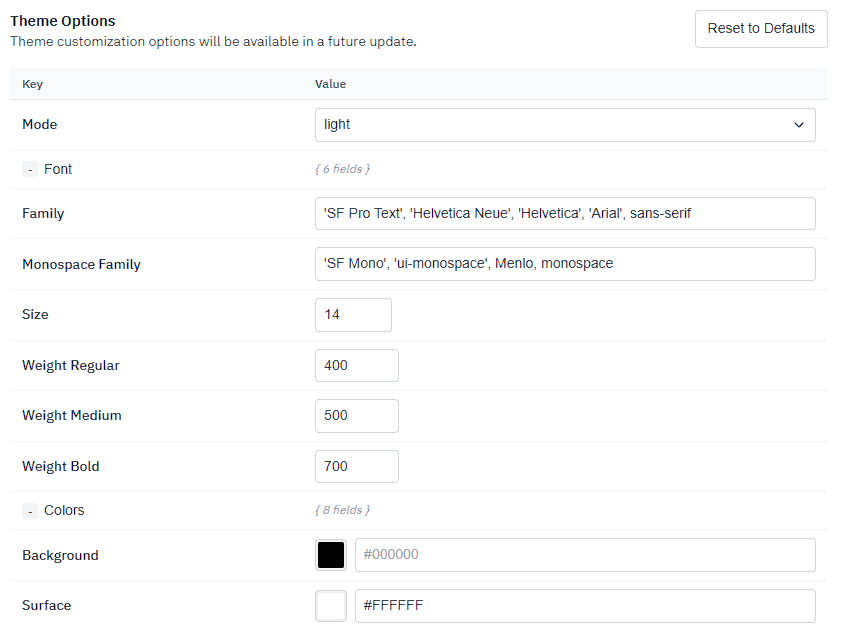
### Theme
Use the Theme Options section to customize colors and fonts.
### Feature Customizations
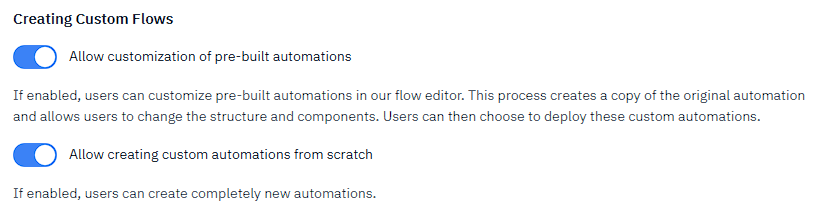
Use these options to define how much customization is available to your end-users.
Customization of automations in the Hub has two levels.
#### **Allow customization of pre-built automations**
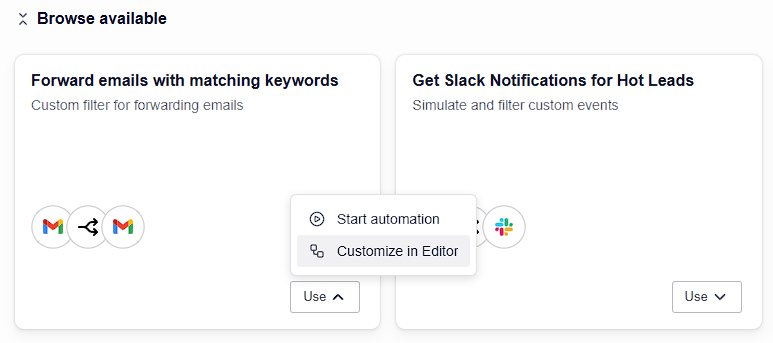
Users can see the "backend" of an automation and make changes to the nodes on the editor canvas.
Available in the context menu of each automation as `Customize in Editor`
#### **Allow creating custom automations from scratch**
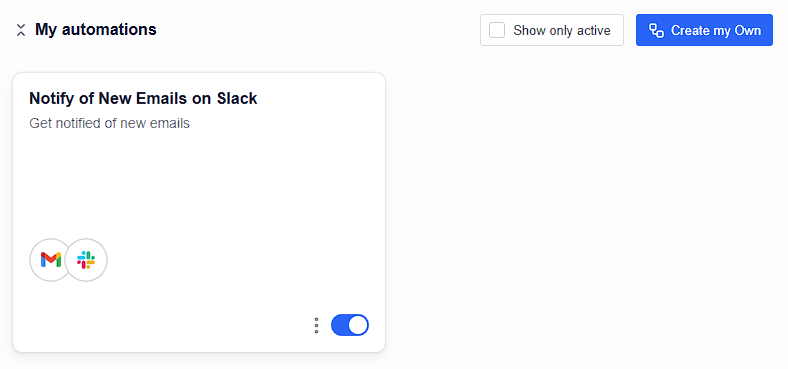
Users can build completely new automations by choosing the nodes themselves on the editor canvas.
Available as the `Create my own` button in the Hub.
{% hint style="info" %}
All the customization options are reflected in the `Embed your Hub` section on the page, so that you can explore the embed code before starting your implementation.
{% endhint %}
## Sharing the Hub
You can easily share the Hub with others so that they can try and deploy pre-built automations even without signing up for the Appmixer Studio.
To share access to the Hub:
1. Add their email address in the `Sharing Options` section in the Hub Settings
2. Click the Share Hub button to copy a shareable link
3. Once they verify their email, they will get full access to the Hub
---
# Agent Instructions
This documentation is published with GitBook. GitBook is the documentation platform designed so that both humans and AI agents can read, navigate, and reason over technical content effectively. Learn more at gitbook.com.
## Querying This Documentation
If you need additional information that is not directly available in this page, you can query the documentation by asking a question.
Perform an HTTP GET request on the following URL with the `ask` and `goal` query parameters:
```
GET https://docs.appmixer.com/getting-started/customize-and-share-your-hub.md?ask=&goal=
```
`ask` is the immediate question: it should be specific, self-contained, and written in natural language.
`goal` is what the user is ultimately trying to achieve, the reason they need the answer. Sharing it helps GitBook give you a better, more relevant answer. A goal is most helpful when it describes the outcome the user wants rather than restating the question. For example, with `ask=how do I create an API token`, a goal like `automate deployments from our CI pipeline` lets GitBook tailor the answer to that use case.
The response will contain a direct answer to the question and relevant excerpts and sources from the documentation.
Use this mechanism when the answer is not explicitly present in the current page, you need clarification or additional context, or you want to retrieve related documentation sections.