> For the complete documentation index, see [llms.txt](https://docs.appmixer.com/llms.txt). Markdown versions of documentation pages are available by appending `.md` to page URLs; this page is available as [Markdown](https://docs.appmixer.com/getting-started/monitor-hub-performance.md).
# Monitor Hub Performance
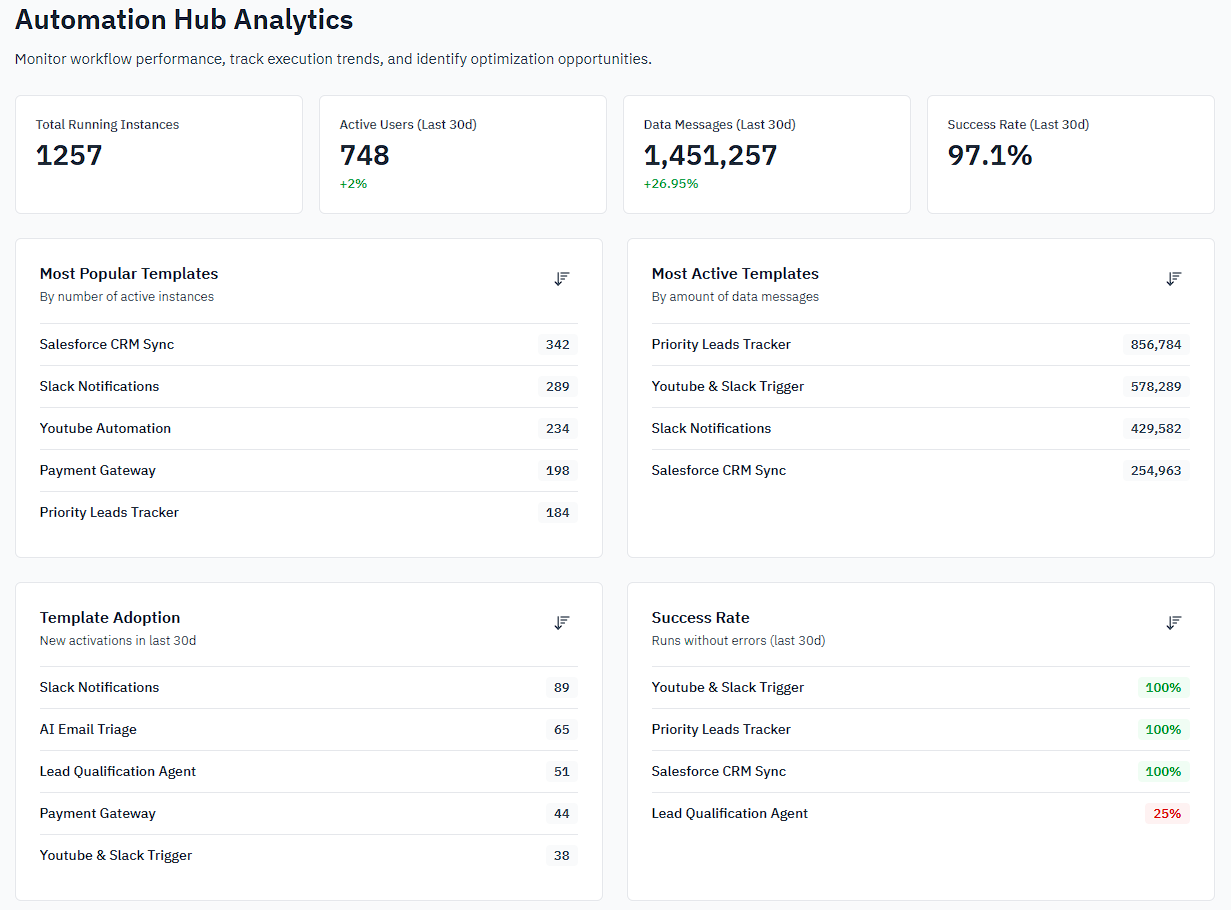
The Analytics dashboard gives you a real-time view of how your end users are engaging with your Automation Hub - what's running, what's being adopted, and where issues are occurring.
Access Analytics from the **Automation Hub** section in the main navigation menu.
***
#### What you'll find
**Summary metrics**
Four tiles at the top of the page give you an at-a-glance health check of your Hub:
* **Total Running Instances** — the number of active integration instances currently running across all your end users
* **Active Users (Last 30d)** — how many users have been active in the past 30 days, with a percentage change compared to the previous period
* **Data Messages (Last 30d)** — total data messages processed, with a percentage change compared to the previous period
* **Success Rate (Last 30d)** — the share of flow runs that completed without errors
**Template lists**
Below the summary tiles, four lists give you a deeper breakdown by template:
* **Most Popular Templates** — ranked by number of active instances
* **Most Active Templates** — ranked by volume of data messages processed
* **Template Adoption** — ranked by new activations in the last 30 days
* **Success Rate** — ranked by the percentage of successful (error-free) runs
Each list defaults to highest-to-lowest order. Click the sort icon to toggle the direction — useful when you want to surface your least-adopted or most error-prone integrations.
***
#### How to use this
**Spot adoption gaps.** The Template Adoption list shows which integrations your end users are actually activating. If a template you've invested in isn't being picked up, that's a signal to revisit its description, positioning, or discoverability in the Hub.
**Find reliability problems early.** The Success Rate list is your fastest path to identifying broken or underperforming integrations. Sort lowest-to-highest to surface the most problematic ones and investigate via Logs.
**Understand engagement trends.** Active Users and Data Messages both include a 30-day delta, so you can see whether engagement is growing or declining without running any additional queries.
***
#### Access analytics via API
All metrics shown on this page are also available via the Appmixer REST API. If you're building custom dashboards or integrating Hub analytics into your own admin tooling, see the Analytics API reference for available endpoints.
---
# Agent Instructions
This documentation is published with GitBook. GitBook is the documentation platform designed so that both humans and AI agents can read, navigate, and reason over technical content effectively. Learn more at gitbook.com.
## Querying This Documentation
If you need additional information that is not directly available in this page, you can query the documentation by asking a question.
Perform an HTTP GET request on the following URL with the `ask` and `goal` query parameters:
```
GET https://docs.appmixer.com/getting-started/monitor-hub-performance.md?ask=&goal=
```
`ask` is the immediate question: it should be specific, self-contained, and written in natural language.
`goal` is what the user is ultimately trying to achieve, the reason they need the answer. Sharing it helps GitBook give you a better, more relevant answer. A goal is most helpful when it describes the outcome the user wants rather than restating the question. For example, with `ask=how do I create an API token`, a goal like `automate deployments from our CI pipeline` lets GitBook tailor the answer to that use case.
The response will contain a direct answer to the question and relevant excerpts and sources from the documentation.
Use this mechanism when the answer is not explicitly present in the current page, you need clarification or additional context, or you want to retrieve related documentation sections.